How to Roll Back a Theme in CARL
Every time you install a theme in CARL, your previous template files and include files are saved automatically to a timestamped backup folder on your server. If you install a new theme and want to go back, everything you need is already there. The rollback process takes a few minutes and requires access to your server via cPanel File Manager or FTP.
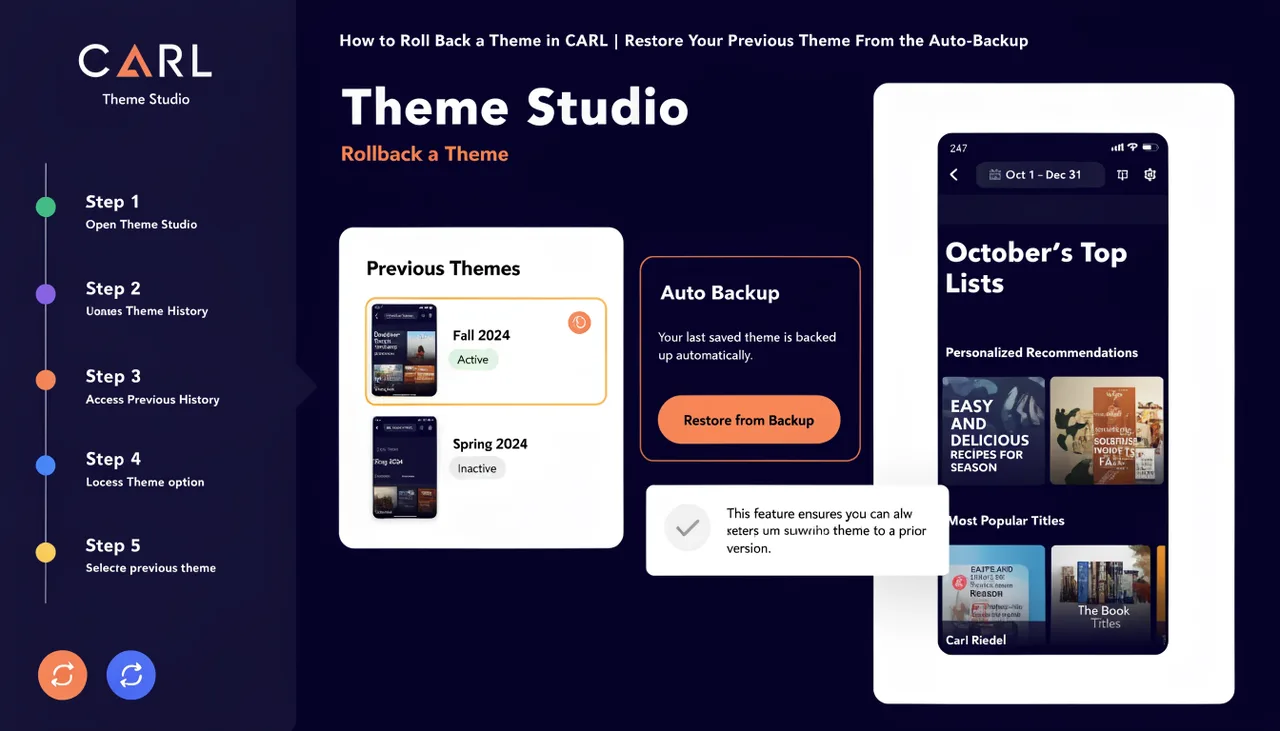
Where the Backup Is Stored
Theme backups are stored in a timestamped folder inside your site's include files directory on the server. The folder name includes the date and time of the install, so you can identify which backup corresponds to which theme. If you've installed multiple themes, you'll have a separate backup folder for each install. Access them via cPanel File Manager or an FTP client.
What the Backup Contains
The backup covers your template files from admin/tpl/ and all include files from site_includes/. This is everything the theme system touches during an install. It does not cover your page content, images, database records, or any other part of your site. If you need a full site rollback rather than just a theme rollback, use CARL's Backup tool instead.
How to Restore the Previous Theme
Open cPanel File Manager or connect via FTP and navigate to the backup folder. Copy the template files back to admin/tpl/ and copy the include files back to site_includes/, overwriting the current versions. Take care to copy all files from both folders, not just some, since a partial restore will leave your site with a mixed set of files from two different themes.
Regenerate to Complete the Rollback
Once the files are restored, go to Pages in your CARL admin panel and run a bulk regeneration. This rewrites every published page using the restored template files. After regeneration, your site returns to the previous theme. Visit your live site to confirm everything is displaying correctly before considering the rollback complete.
Preventing the Need for a Rollback
The most reliable way to avoid rollbacks is to test a new theme on a staging installation before deploying it to your live site. Install the theme on a test CARL install, regenerate, and check every page type — blog layout, full-width layout, and category pages — before touching your live site. If everything looks correct on the test install, you can install with confidence on the live site.