How to Install a CARL Theme
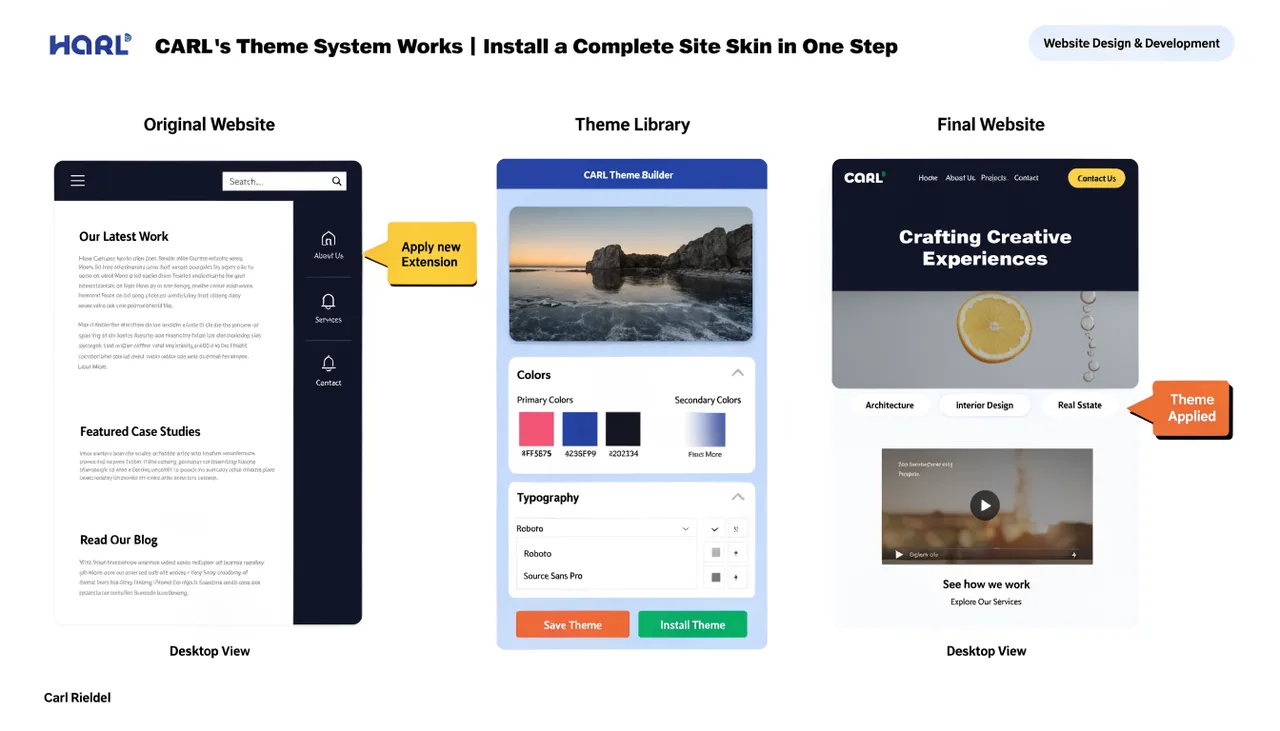
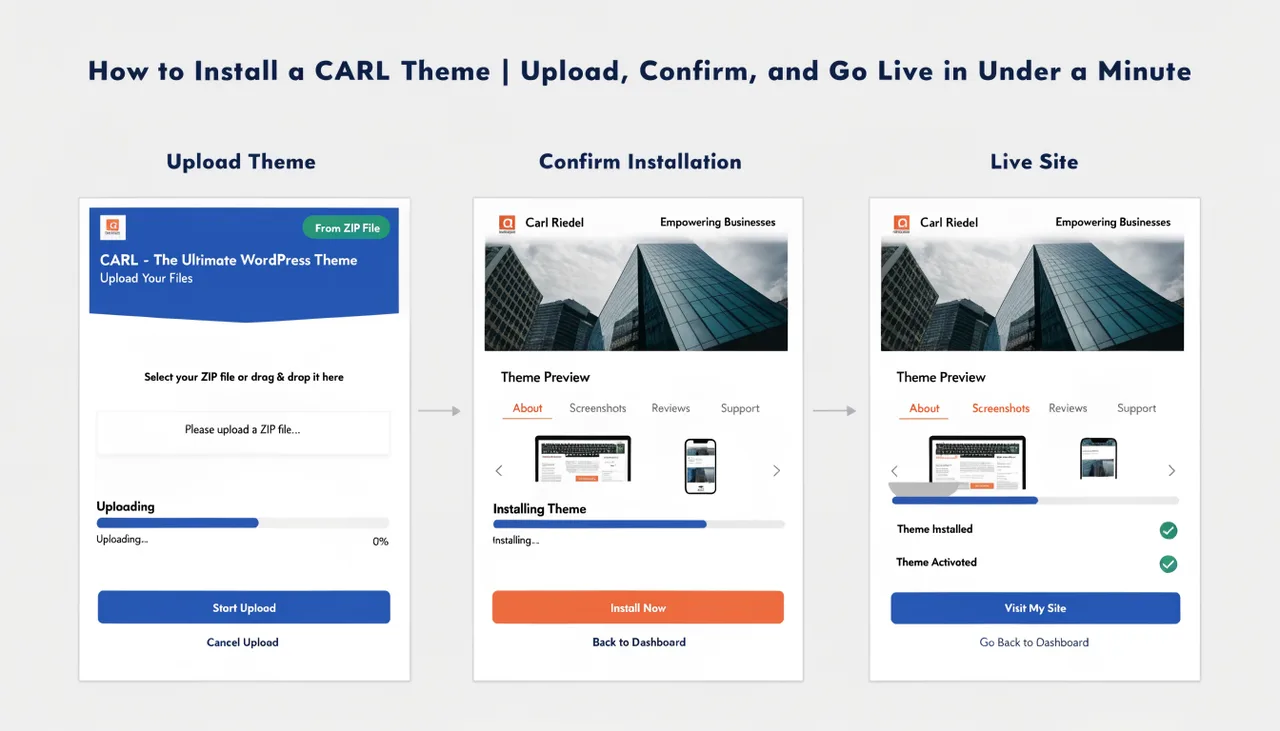
Installing a theme in CARL is a two-step process: upload the package, then confirm the installation. CARL handles everything else — backing up your current files, extracting the new theme, remapping your pages, and registering the new templates. The whole process takes under a minute. Regenerating your pages afterward pushes the new look to your live site.
Before You Start
Have your .carltheme file downloaded and ready before opening the Themes page. The installer requires a valid theme package to proceed. It's also worth running a full site backup through CARL's Backup tool before making any major changes, since theme backups cover only templates and include files, not your page content or database.
Step 1: Open Themes
In your CARL admin panel, click Themes in the left sidebar. This opens the theme manager where you can upload and install theme packages.
Step 2: Upload Your Theme File
Click the upload area or drag your .carltheme file onto it. CARL reads the package immediately and validates its contents. Nothing is installed at this step. If the package is valid, a confirmation panel appears showing the theme name, version, author, and a summary of what will be installed.
Step 3: Review and Confirm
Check the confirmation screen to verify the theme details match what you intended to install. When you're satisfied, click Install Theme. CARL backs up your current files, extracts the new templates and include files to their correct locations on your server, registers the new templates in the database, and remaps all your existing pages to the new theme's layouts.
Step 4: Regenerate Your Pages
After the install completes, go to Pages in the sidebar and click Regenerate All. This rewrites every published page on your site, applying the new theme. Until you regenerate, your live pages still display the previous theme. Regeneration time depends on how many pages your site has, but on most sites, it completes in a few seconds.
After Regenerating
Visit your live site and confirm the new theme is displaying correctly. Check your navigation links, footer content, and sidebar. If the theme uses a header banner image, you may need to upload your header image and update the reference in your site_header.txt include file — each theme may expect a different image filename or dimensions. Run a Site Health check after regenerating to confirm all pages are in good shape.